 TruePlayer
Guide
How to use TruePlayer, from opening it for the first time to setting the sound.
In short
- At the first start, choose where your music is: on your phone, on a server of your own, or both. You need no server for music and
.m4baudiobooks on your phone, podcasts and radio. - Not every feature works with every source. What works with which source sets it out exactly.
- There are four tabs at the bottom: Home, Search, Library and Create.
- Open Settings with the gear at the top right of Home.
- Lights on the player show where a song comes from; see The lights.
- Looking up lyrics online and searching podcasts by name stay off until you allow them; see What happens to your data.
Getting started: choosing your sources
At the first start the app asks Where is your music? Choose one or more and tap Continue:
- No outside sources: you use the app for radio, podcasts and the music and audiobooks on your phone.
- On this phone: the music and/or
.m4baudiobooks on your phone. The app asks for access to them. - Navidrome server or Jellyfin server: your own server. Fill in the address, your username and your password.
- OpenSubsonic server: for example Gonic, LMS or Airsonic. Fill in the address first; the app then asks the server how to sign in. LMS uses an API key, which you make on LMS's web page.
- Audiobookshelf server: your audiobooks and podcasts.
Want to see how the app works with a server, but have none yourself? Choose Navidrome server and tap Try the demo. That is Navidrome's public test server, with freely licensed music. You share it with other visitors, so playlists and listening history may change.
Adding or changing a source later
- Add server is under Settings, Servers. There you can also rename or remove a server. Your music on the server stays where it is.
- Mix and match: use Navidrome, Jellyfin, an OpenSubsonic server and Audiobookshelf all at once, together with what is on your phone. Everything comes together in the app.
- Under Settings, Sources you switch sources on or off. If a song is on more than one source, the app shows it once, from the source at the top. Drag the sources to change the order.
- Settings, Sources also has the switch Show sources as icons. When it is on, you see a small icon of the source in the corner of a cover: the phone or the server. When it is off, the icons are gone and the cover does not show where something comes from.
- Under Settings, Music on the phone you choose which folders take part.
What works with which source
Not every source can do the same. Audiobookshelf has no music, for example, and Jellyfin has no radio. This table shows what you need for each feature. On a phone you can slide the table sideways.
| Feature | Phone | Navidrome | Jellyfin | OpenSubsonic | Audiobookshelf |
|---|---|---|---|---|---|
| Music | Yes | Yes | Yes | Yes | No |
| Audiobooks | Only .m4b | No | No | No | Yes |
| Podcasts | Yes | No | No | No | Yes |
| Radio | Yes | Yes | No | Per server | No |
| Playlists | Yes, from any source | Yes | Yes | Yes | No |
| Favourites | Yes, on the phone | Yes | Yes | Yes | No |
| Download | Not needed | Yes | If your account may | If your account may | Yes |
| Transcode | Not needed | Yes | If your account may | Yes | No |
| Lyrics from the source | No | Yes | From version 10.9 | Per server | No |
| Share | No | If switched on on the server | No | Per server | No |
| Queue on the server | No | Yes | No | Per server | No |
| Continue here | No | Yes | Yes | Per server | No |
| ReplayGain | No | Yes | No | Per server | No |
| Start mix | Yes | Yes | Yes | Per server | No |
| Mixes and Mix maker on Home | No | Yes | Yes | Yes | No |
Using everything? With Navidrome for your music and Audiobookshelf for your audiobooks and podcasts, every feature in this table works. You do have to switch sharing on in Navidrome. Do you have another server, or no server at all? The app works then too, with the features the table shows for your source.
Podcasts through an RSS address and your own radio stations are in the Phone column, because they need no server.
Differences between OpenSubsonic servers
We tested these servers ourselves with Gonic 0.23, LMS 3.81, Airsonic-Advanced and Jpsonic 115.1. Other versions may differ. “Not tested” means we do not know.
| Feature | Gonic | LMS | Airsonic-Advanced | Jpsonic |
|---|---|---|---|---|
| Radio | Play and change | No | Play only | Play only |
| Share | No | No | Yes | Yes |
| Lyrics from the source | Yes | Yes | No, empty in the test | No, it only looks them up online |
| Queue on the server | Yes | No | No | Yes |
| Seek in transcoded songs | Yes | Yes | Yes | Once the song has loaded |
| Continue here | Yes | Yes | Yes | No |
| ReplayGain | Yes | Yes | No | No |
| Start mix | No, empty in the test | Yes | Yes | Yes |
| Artist picture | An album cover, see below | Yes, from your files | Yes, from your files | Yes, from your files |
| Artist biography | Yes, from Last.fm | Yes, from your files | Yes, from Last.fm | Yes, from Last.fm |
What your own server and account can do is under Settings, About the servers. It shows for each feature whether it works, and if not, why not.
Artist pictures and biographies
The app shows what your server gives, and it always asks your server itself for an artist's picture, never another address, for example on Last.fm. So your phone only talks to your own server, and a picture you change on the server shows at once. Where the server gets its pictures and biographies differs:
- Gonic gets the biography from Last.fm once you fill in a Last.fm API key and secret on Gonic's web page. Gonic has no artist pictures of its own: it uses the cover of one of the artist's albums, and only when that cover is a file in the album folder, such as
cover.jpg. A cover inside your music files does not count. Without a cover file you see a placeholder. - LMS reads both from your own files. Put an
artist.nfofile (the Kodi format, with the artist's name and MusicBrainz ID) and a picture calledthumb.jpgin a folder per artist, preferably in a folderArtistInfoat the top of your library. Without a picture, LMS uses the cover of the artist's first album. A Last.fm key in LMS is only for scrobbling. - Airsonic-Advanced gets the biography from Last.fm by itself; you set nothing. The picture comes from your files: put a picture, such as
folder.jpg, in the artist's folder, the one above the album folders. Then let Airsonic scan again. - Jpsonic works as Airsonic-Advanced does: the biography comes from Last.fm by itself, the picture from a file such as
folder.jpgin the artist's folder.
If your server gives an artist no picture of their own, the app shows the cover of their newest album instead.
Airsonic-Advanced behind a reverse proxy? Then Airsonic has to know the address it is reached at. Otherwise the links it makes, such as share links, carry the wrong address. Do what Airsonic-Advanced's reverse proxy guide says: add server.forward-headers-strategy=native to Airsonic's application.properties, and let the proxy send the headers X-Forwarded-Host and X-Forwarded-Proto.
The tabs
- Home adapts to what you use. With a music server you see what you played lately, mixes, podcasts and audiobooks, among other things. Without a music server Home is built around podcasts, books, radio and the music on your phone.
- Search searches your whole library: artists, albums, songs, podcasts and audiobooks.
- Library shows everything together. With the buttons at the top you choose Albums, Artists, Playlists, Podcasts, Books, Radio, Favourites, Downloads, or one source. You can sort and filter. Sorting by name skips words like “The” and follows the sort names in your music files, when your server passes them on.
- Create is the place for what you add yourself: playlists, podcasts, radio stations and your own equalizer presets.
Almost everything has a menu with three dots. It holds Play next, Add to queue, Add to playlist and Download, among other things.
The player
Tap what is playing to open the player. Scroll down there for information about the artist, the lyrics and the queue.
The lights
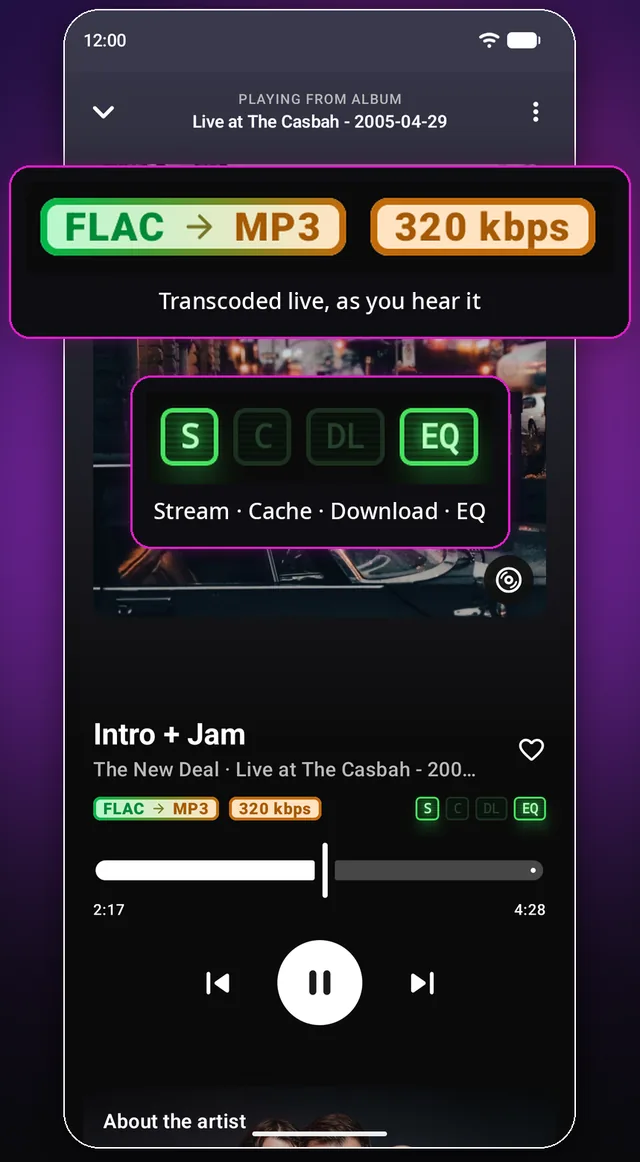
Under the title are four lights:
- S: the song streams from your server.
- C: it plays from the cache, so from what the phone has already kept.
- DL: it is downloaded.
- EQ: the equalizer is on. Tap this light to switch it on or off. The other three only show what is happening.
Beside them you see the file type and the bitrate as you hear them. When the server converts a song you see that too, for example from FLAC to MP3.
Sound
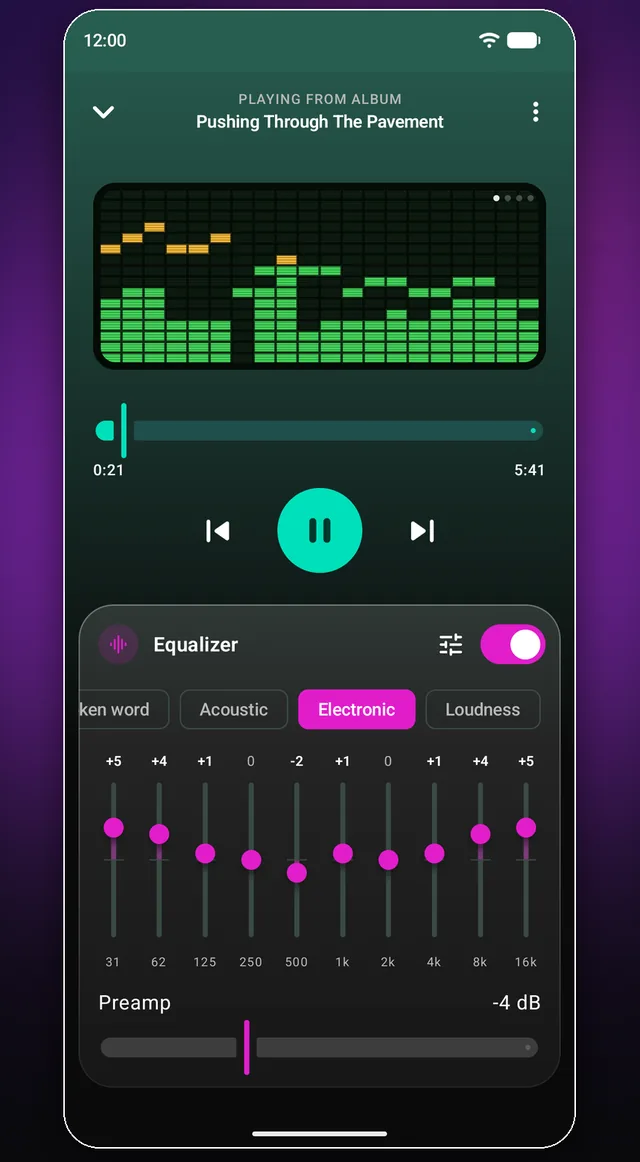
Open the menu with three dots in the player and choose Equalizer. With the phone upright, the visualizer and the 10 bands slide in around the controls. Tap the visualizer to go to the next look; there are four.
- Presets: choose a built-in one, such as Vocal or Spoken word, or choose Save as preset to keep your own setting.
- Crossfade lets the end of a song fade into the next. It does not do so within an album playing in order, so songs that run into each other stay whole.
- ReplayGain plays every song equally loud. Your music files need ReplayGain tags for this, and the server has to pass them on. Navidrome, Gonic and LMS do. With Jellyfin, Airsonic-Advanced and music on your phone ReplayGain does not work, even when your files have tags.
- Balance divides the sound between left and right.
Crossfade, ReplayGain and balance are under Settings, Equalizer & effects.
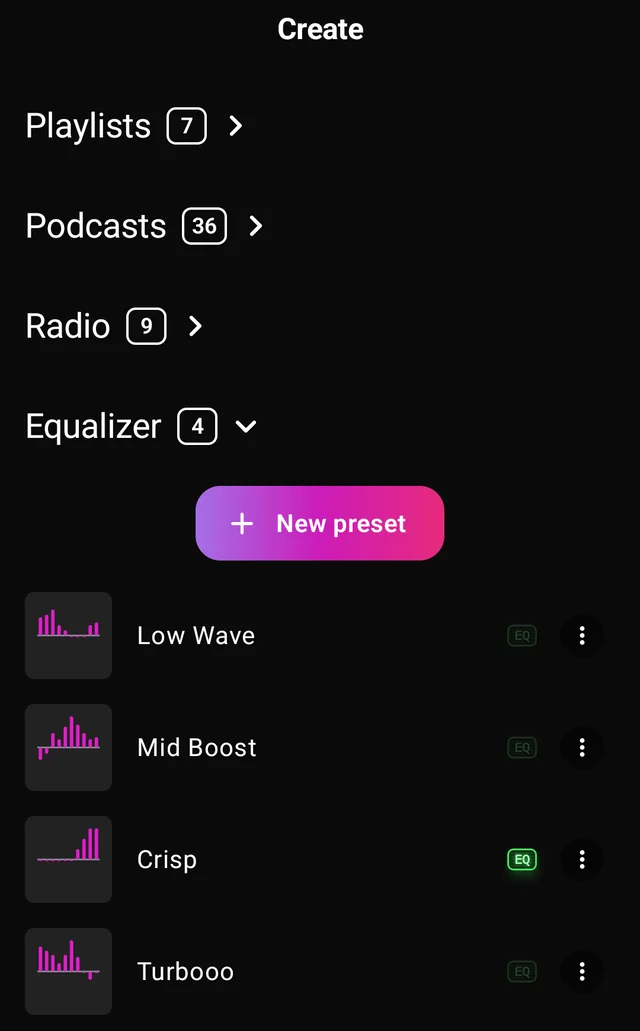
Your own presets are in Create, under Equalizer. Each preset shows a small picture of its bands, its name and an EQ light. Tap a preset to switch it on: the EQ light is then lit, there and on the player. Tap it again to switch it off. With the three dots you can edit a preset, rename it or delete it. New preset adds one.
The queue and the sleep timer
Tap Open queue at the bottom of the player. There you switch shuffle and repeat on, drag songs to another place and take them out of the queue.
The Timer is there too: playing stops after 15, 30, 45 or 60 minutes, or at the end of the song, the episode or the chapter.
When the queue runs out, the music carries on with songs like the last one. If you do not want that, switch Keep playing off under Settings, Playback.
Lyrics
When a song has lyrics, they are in the player under the controls. Tap them to read them full screen.
- Music from a server: the app uses the server's lyrics first, from the file's tags or from an
.lrcfile beside it. The table shows which servers can do this. - Music on your phone: the app does not read lyrics from the file or from an
.lrcfile. Lyrics here only come from LRCLIB. - LRCLIB: when the source has no lyrics, the app asks once whether it may look them up on LRCLIB. If you say no, there are no lyrics.
Mixes
- Start mix in the menu of a song or album makes a mix like it. This also works with music on your phone: the app then looks for the same artist, the same genre and years close by. A server uses data from Last.fm for this, and the result then depends on how your server is set up.
- Mixes for you on Home, such as the Daily mix, the Favourites mix and Rediscover, and the Mix maker only show with a Navidrome, Jellyfin or OpenSubsonic server. With the Mix maker you choose genres, years and the length yourself.
Playlists and sharing
Make a playlist through Create, New playlist. A playlist on your server can only hold songs that are on that server. A playlist on your phone can hold songs from any source, but is kept on that phone only. Audiobookshelf has no playlists.
Share in a menu makes a link anyone can listen with, until it expires. This works for songs, albums and playlists from Navidrome and Airsonic-Advanced. On Navidrome, sharing has to be switched on on the server. Jellyfin, Gonic and LMS cannot make links, and music on your phone, podcasts and audiobooks cannot be shared. Under Settings, My shared links you revoke a link.
Downloads and storage
Choose Download in the menu of an album, playlist or audiobook, or with an episode. It carries on in the background. What you have downloaded is in the Library under Downloads and also plays without a connection to your server.
You download music from Navidrome, Jellyfin (if your account may) and OpenSubsonic (if your account may), audiobooks from Audiobookshelf, and podcast episodes. What is already on your phone needs no download. Radio cannot be downloaded.
Under Settings, Storage you see how much room everything takes. There you also set how large the music cache may get, switch Download only on Wi-Fi on or off, and empty things again.
Saving data
Transcode is under Settings, Playback. When you switch it on, music from Navidrome, Jellyfin (if your account may) or OpenSubsonic comes from your server as MP3, at no more than the bitrate you choose. Songs at that bitrate or lower play as they are.
Below it is the switch Only on mobile data:
- On: the app only transcodes when you listen on mobile data. On Wi-Fi the original file plays.
- Off: the app always transcodes, on Wi-Fi too.
Music on your phone, audiobooks, podcasts and radio are never transcoded.
Downloading and transcoding
Whether you download music transcoded depends on the same settings:
- Transcode on, Only on mobile data off: you download a song as MP3 at the bitrate you chose. If the song is at that bitrate or lower, you download it as it is.
- Transcode on, Only on mobile data on: you download the original file, also when you are on mobile data.
- Transcode off: you download the original file.
What you have already downloaded stays as it is, also when you change these settings later.
Podcasts
Podcasts do not come from Navidrome, Jellyfin or OpenSubsonic. They reach the app in three ways, which work side by side:
- Directly through RSS: you need no server. The app gets the episodes from the podcast's maker.
- Audiobookshelf: your podcasts on your own server.
- Files on your phone: files Android marks as a podcast, most often because they are in the Podcasts folder.
In Create, tap Add podcast. Paste the podcast's RSS address, or search by name. Searching by name uses Apple's podcast directory, and the app asks your permission first. Then tap Subscribe.
- New episodes come in one notification and are marked in the app: a dot before each new episode, and a count on the podcast's cover. The count goes when you open the podcast and comes back with the next new episode; a dot goes when you play that episode.
- Looking for new episodes: pull down on All podcasts or on a podcast to look right away. Under Settings, Podcasts you set whether the app also looks by itself, once or four times a day, or only when you pull down (Manual). There you also set whether you want the notification and whether new episodes are downloaded by themselves. On Manual there is no notification.
- Speed: tap the speed in the player to choose from 0.8× to 2×. The app remembers it per podcast.
- Skipping: the buttons in the player go 10 seconds back and 30 seconds ahead.
- In an episode's menu you mark it as played or unplayed.
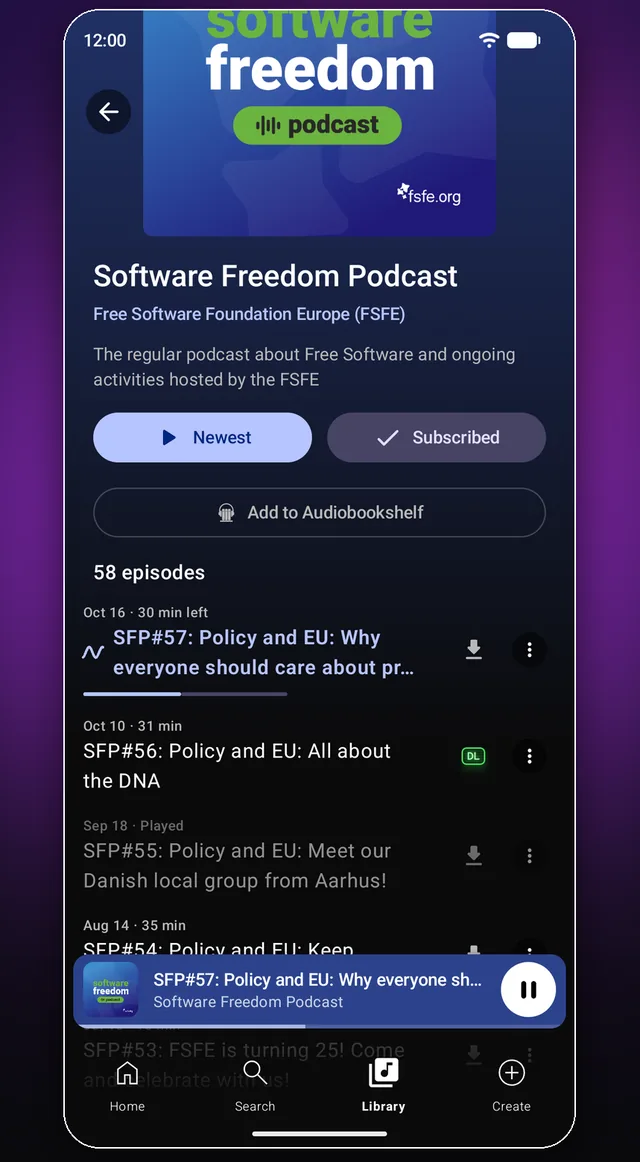
Podcasts and Audiobookshelf together
With an Audiobookshelf server your podcasts on the phone and on the server work together: you have one list per podcast, with every episode of the feed. This is how it works:
- Subscribe. Subscribe to a podcast. You can listen and download episodes right away. The app remembers on your phone where you are.
- Add it to the server. The podcast's page now shows the button Add to Audiobookshelf. One tap puts the podcast on your server. That does not put the episodes there by themselves: you put them there one by one, see step 4. If you do not add the podcast, everything keeps working on your phone.
- See what is on the server. In the list of episodes, On server shows beside everything Audiobookshelf has. Those episodes play from your server, and the server remembers where you are, for your other devices too.
- Choose an episode that is not on the server. When the podcast is added and you tap an episode that is not on your Audiobookshelf server, you choose:
- Play now (from the feed): it plays right away, and where you are stays on your phone.
- Put on the server: Audiobookshelf gets the episode from the feed and puts it on your server. After that the server remembers how far you are.
- Download to the phone: you keep it on your phone.
- Remove an episode. Choose Remove from the server in the episode's menu. The file goes from Audiobookshelf. Where you are stays on your phone, and as long as the feed still has the episode, it plays from there.
- Remove the whole podcast. On the podcast's page, tap Remove from Audiobookshelf. The podcast and its episodes go from the server. It stays on your phone, with where you are.
To add, to put on the server and to remove the whole podcast you have to be an administrator on Audiobookshelf. Removing an episode from the server also works with an account that may delete. If you may not do something, the app says so. Podcast files on your phone cannot be added to Audiobookshelf.
Audiobooks
Audiobooks do not come from Navidrome, Jellyfin or OpenSubsonic. There are two ways:
- Audiobookshelf: your books on your own server. The app keeps where you are on the server, so you can carry on on another device. A book plays as one whole, also when it consists of several files.
- On your phone: only
.m4bfiles count as audiobooks, in whatever folder they are. Other files, such as MP3, are music to the app. If the file has chapters, the app shows them. Where you are stays on the phone.
In the Library your books are under Books, with Audiobookshelf also by author and by series. For a book the player has buttons for the previous and next chapter, beside 10 seconds back and 30 seconds ahead. In a book's menu you mark it as finished.
Radio
Add a station through Create, Add radio station, or with + Station on Home. You need the stream address. If you also fill in the station's homepage, the app only gets the logo from it.
Where a station is kept
When you add one, there is a switch Keep on the phone:
- If you are an administrator of your Navidrome or Gonic server, the switch is off and the station goes on your server. Switch it on if you want to keep the station on your phone only.
- If you are no administrator, the switch is locked on and grey. The station then goes on your phone.
- If you have no such server, there is no switch: the station goes on your phone.
You can move a station between your phone and your server later, if you are an administrator: choose Edit and flip the switch.
Which stations you see
- On your phone: this always works, also without a server, and you can always change these stations yourself. They are kept on that phone only.
- Navidrome and Gonic: the server's stations play in the app. Only an administrator of the server can change them from the app.
- Airsonic-Advanced and Jpsonic: the server's stations play in the app, but you cannot change them there.
- Jellyfin, LMS and Audiobookshelf: no stations from the server. Keep your stations on your phone.
Staying in step with your server
Playlists, favourites and what you play stay in step with Navidrome, Jellyfin and OpenSubsonic. A favourite on your phone is kept on the phone. If the same song is on a server too, it gets a heart there as well.
- Queue on the server: the app keeps your queue on your Navidrome server, or else on your OpenSubsonic server, so you can carry on on another device. With Jellyfin, LMS and Airsonic-Advanced the queue stays on your phone. So do songs from other sources.
- Continue here: when another player of yours is playing something, Home offers this. Tap Continue to take it over on your phone. This works with Navidrome, Jellyfin, Gonic, LMS and Airsonic-Advanced, not with Jpsonic.
What the app can do with your server also depends on your account. Under Settings, About the servers you see for each feature whether it works, and if not, why not.
More servers of the same kind
If you have two Navidrome servers or two accounts, for example, add them both. One of each kind is active at a time, and OpenSubsonic counts as one kind. A new server becomes the active one and the one before stays kept. You switch with the round button with your first letter, beside the gear on Home. Playing stops when you do.
When something does not work
- No connection to the server: check the address and whether your server can be reached from where you are now. Your downloads do play: Library, Downloads.
- The server no longer takes your login: sign in again through Add server.
- The phone cannot play this file: your phone does not support that file type. If the song comes from a server and its bitrate is above your setting, Transcode can help, because it then comes as MP3.
- Download is grey: Download only on Wi-Fi is on and you are on mobile data, or it comes from your phone and is already there.
- Share is grey or not in the menu: your server or source cannot make links, or sharing is off on your server. See the table.
What happens to your data
You need no account with us, and TruePlayer sends nothing to us. The app has no ads, analytics or trackers. It only talks to the servers you set up yourself and to the podcasts and radio stations you choose.
Two services stay off until you allow them. Look up lyrics online sends a song's artist, title, album and length to LRCLIB. Search podcasts online sends your search words to Apple and also gets the popular podcasts of your country from there. You switch them on or off under Settings. There is more in the privacy policy.
Questions
Is your question not here? Send an email to info@appswithmanners.com.